Tuesday, June 22, 2010

"New" ribbon icon disabled in central admin

Issue:
You cannot see the "New" icon in the Ribbon menu, when you are trying to create any new web application or service through SharePoint 2010 central admin in windows 7 machine.

Reason & Solution
The reason is very simple. The Internet explorer is not opened using the administrator privileges. So, Open the Internet Explorer with "Run as Administrator" privileges. How to do this?

OK, I will explain you the steps here.

1. Just right click on the IE icon.
2. There you can see a menu as "Run as Administrator".
3. In IE, browse the application. You can see the "New" icon in Ribbon menu as below:


Thats it...

Getting Blank page instead of Central Admin after installing SharePoint 2010 in Windows 7

Issue:
You will get a blank page instead of Central admin page when you are trying to access the central admin page after installed and configured the SharePoint 2010 software in windows 7 machine.

Reason:
By default, some of the authentication providers may not be installed in Windows 7 machine (inside IIS). You can check the list of authentication providers by double click on the central administration site in IIS. See the sample screenshot below.
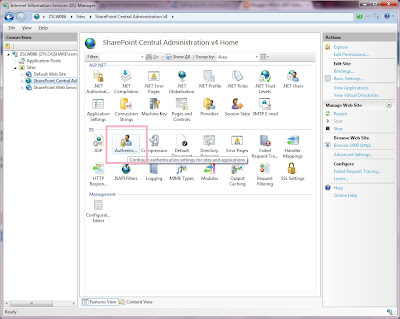


If you double click in the "Authentication" link as I specified in the above image, you cannot see the below authentication mechanisms:
1. Windows Authentication
2. Basic Authentication
3. Digest Authentication

If they are existing, they may not be enabled.

Solution:
To add these authentication mechanisms in IIS, open the Command Prompt and type the below command. Then, wait for 2 minutes.

Command

start /w pkgmgr /iu:IIS-WebServerRole;IIS-WebServer;IIS-CommonHttpFeatures;IIS-StaticContent;IIS-DefaultDocument;IIS-DirectoryBrowsing;IIS-HttpErrors;IIS-ApplicationDevelopment;IIS-ASPNET;IIS-NetFxExtensibility;IIS-ISAPIExtensions;IIS-ISAPIFilter;IIS-HealthAndDiagnostics;IIS-HttpLogging;IIS-LoggingLibraries;IIS-RequestMonitor;IIS-HttpTracing;IIS-CustomLogging;IIS-ManagementScriptingTools;IIS-Security;IIS-BasicAuthentication;IIS-WindowsAuthentication;IIS-DigestAuthentication;IIS-RequestFiltering;IIS-Performance;IIS-HttpCompressionStatic;IIS-HttpCompressionDynamic;IIS-WebServerManagementTools;IIS-ManagementConsole;IIS-IIS6ManagementCompatibility;IIS-Metabase;IIS-WMICompatibility;WAS-WindowsActivationService;WAS-ProcessModel;WAS-NetFxEnvironment;WAS-ConfigurationAPI;WCF-HTTP-Activation;WCF-NonHTTP-Activation


The command will be executed and you can see in IIS that these authentication mechanisms will be added. See the sample screenshot below:
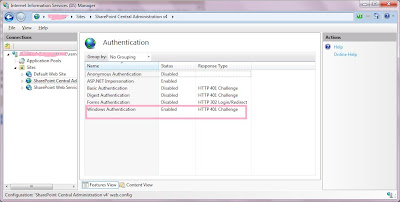


Please make sure that the Windows Authentication should be enabled to access the SharePoint 2010 central administration page.

So, now you can browse the central admin page instead of blank page.
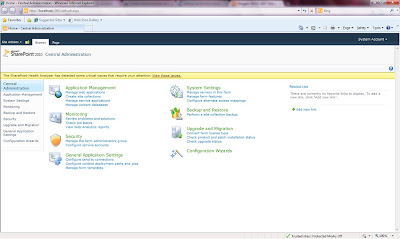


Thats it...

Monday, June 21, 2010

Could not load file or assembly 'Microsoft.IdentityModel, Version=3.5.0.0, Culture=neutral, PublicKeyToken=31bf3856ad364e35' or one of its dependencie

Error:
Could not load file or assembly 'Microsoft.IdentityModel, Version=3.5.0.0, Culture=neutral, PublicKeyToken=31bf3856ad364e35' or one of its dependencies. The system cannot find the file specified.System.IO.FileNotFoundException: Could not load file or assembly 'Microsoft.IdentityModel, Version=3.5.0.0, Culture=neutral, PublicKeyToken=31bf3856ad364e35' or one of its dependencies. The system cannot find the file specified.

Reason:
"Windows identity foundation pack" may be missed from your machine.

Solution:


An exception of type Microsoft.SharePoint.Upgrade.SPUpgradeException was thrown. Additional exception information: Failed to call GetTypes on ....

Error:
An exception of type Microsoft.SharePoint.Upgrade.SPUpgradeException was thrown. Additional exception information: Failed to call GetTypes on assembly Microsoft.Office.Server.Search, Version=14.0.0.0, Culture=neutral, PublicKeyToken=71e9bce111e9429c. Could not load file or assembly 'System.Web.DataVisualization, Version=3.5.0.0, Culture=neutral, PublicKeyToken=31bf3856ad364e35' or one of its dependencies. The system cannot find the file specified.

Reason:
You will get this error, when you are trying to configure the SharePoint 2010 central admin (SharePoint product configuration wizard). The reason behind the error is, you might not installed the "Chart Control" in your windows 7 machine.

Solution:
So, download the chart control from http://go.microsoft.com/fwlink/?LinkID=122517 and install it.

Thats it...

Thursday, April 15, 2010

The specified SPContentDatabase Name=WSS_Content Parent=SPDatabaseServiceInstance Name=MSSQL2008 has been upgraded to a newer version of SharePoint.


Error:
The specified SPContentDatabase Name=WSS_Content Parent=SPDatabaseServiceInstance Name=MSSQL2008 has been upgraded to a newer version of SharePoint. Please upgrade this SharePoint application server before attempting to access this object.


Reason:

This error may occur, if you are trying to attach the SQL server 2008 "MDF" file in SQL Server 2008 (No typo :) ) and the SharePoint Version is MOSS 2007 with no service packs.

Solution:

Just install the WSS service pack 2 & MOSS service pack 2. Now, you can attach the database without any issue.

For more info, refer my another post here

Thats it...

Monday, April 12, 2010

Issue: "Create or extend web application" link is missing in Central Admin


Issue:
"Create or extend web application" is missing in Central Admin.

Reason:
1. Because, the current browsing user may not have the rights to create the Web application.
2. You may be browsing within "Windows Server 2008"
3. You may be browsing within the MOSS server

Solutions:
Solution 1:
Browse the Url from outside MOSS 2007 server
Solution 2: (Suggested solution)
1. Right click on the browser icon.
2. Select "Run as Administrator" option.
3. Now, go to the central admin url and you can see the "Create or extend web application" link.


Thats it.

"Save site as template" Missing in MOSS 2007

Issue:
Sometime "Save site as template" link may be missed in MOSS 2007

Solution:
Usually this link will be available in the "Site Actions" --> "Site Settings" area. This may be missed sometimes, if you upgrade your team site into "Publishing Site". (i.e. If you forced to convert as a publishing site through the STSADM command). Then, How can we save the site template?

Still there is an answer. Just type the below command in browser after the site name & port (without quotes).

"/_layouts/savetmpl.aspx"

For example:
http://172.16.10.10:5002/_layouts/savetmpl.aspx

Later, you can download this template from "Site Template Gallery" (under Site Actions --> Site Settings). 
For Example:
http://172.16.10.10:5002/_catalogs/wt/Forms/Common.aspx

Thats it...