Showing posts with label MOSS2007. Show all posts

Thursday, March 29, 2012

How to: Migrate MOSS 2007 to SharePoint 2010

Migration from MOSS 2007 to SharePoint 2010


Nowadays we are getting multiple projects to migrate MOSS 2007 to SharePoint 2010. By Default, SharePoint 2010 will support to migrate the contents from MOSS 2007 to SP 2010. 


To complete the migration successfully, I am giving some additional and easy steps to follow:


Steps to Migrate the MOSS 2007 to SharePoint 2010 Contents:
1. Take a backup of existing MOSS 2007 content database using SQL server management studio. Before taking SQL backup, you can truncate the "log" file from SQL server. The log file will slow down your migration process. 


2. Restore the Content DB in target SQL Server using SQL server management studio. 


3. Create an dummy SharePoint 2010 web application without a top level site collection. (Do not refer the newly attached database name while creating teh web application) 


4. Remove the Content Data Base from the newly created dummy website through central admin as mentioned below:


i. Go to "Application Management" --> "Manage Content Databases" --> Select the specific web application.


ii.select the "Remove content database" checkbox. and click OK twice as mentioned below.


5. Then add the Content DataBase through STSADM command to the specific web application.
stsadm -o addcontentdb -url "http://172.16.0.148:3030" -databasename "WSS_Content_Old_ContentDB"


6. Now browse the application and do the visual upgrade in "Settings" page.


Thats it....


Updates:
1. Sometimes, you will not be able to browse the application since you may not be the administrator of the migrated application. At that time you need to add your name/administrator name as "Site collection Administrator" through central admin URL as mentioned below.


i. Application Management --> "Change site collection administrators" 
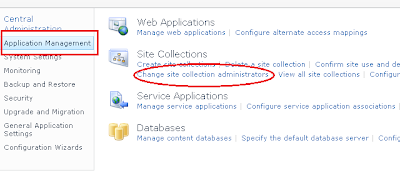


ii. Select your web application and update the correct Primary and secondary administrators. 


2. If you are not able to update anything in the newly migrated application, the application may be in Read-Only mode. Or sometimes, the administrator (system account) will not be able to see the Administration links. To fix this, you need to provide read-write access to the newly created web application as I mentioned below.


stsadm -o setsitelock -url "http://servername" -lock none


3. During the migration process, you check the status of the migration in "Upgrade and Migration" section of central admin.


Sometimes, the migration status may shown as "failed". This is because of the custom solutions which are deployed in the MOSS 2007. You can simply ignore them.


But once the "Addcontentdb" command is completed, the database status should be "No action required". You can check the status under the "Upgrade and Migration" --> "Review database status" in central admin.


4. If you are getting 

 "Database is in compatibility range and upgrade is recommended" error, then you need to run the 
PSConfig.exe -cmd upgrade -inplace b2b -force -cmd applicationcontent -install -cmd installfeatures command.
....
(Do let me know, if you need any other information related to migration...)

Tuesday, October 12, 2010

Error: Unable to create or access workbook cache at C:\WINDOWS\TEMP\Excel Server\FileCache\SharedServices1-1078443246\Ranges. Excel Services is unable to function without a workbook cache

Error: 
Unable to create or access workbook cache at C:\WINDOWS\TEMP\Excel Server\FileCache\SharedServices1-1078443246\Ranges. Excel Services is unable to function without a workbook cache.

(you can see this error in Event viewer)

Reason:
Unknowingly you may have deleted the above mentioned folders. So, Excel services is not able to save the temporary files under the "Ranges" folder.

Solution:
Login inside the SharePoint server and create the "Ranges" folder as per the above mentioned folder structure. If you are not able to see the "Excel Server" folder inside "C:\Windows\Temp" folder, just create it manually.

If you see any other error like this, create the missing folder.

Thats it... 

Wednesday, August 4, 2010

Error: Method not found: 'Microsoft.SharePoint.Administration.SPContentDatabase Microsoft.SharePoint.Administration.SPContentDatabaseCollection.Add(System.String, System.String, System.String, System.String, Int32, Int32, Int32, Boolean, Boolean)

Error:
Method not found: 'Microsoft.SharePoint.Administration.SPContentDatabase Microsoft.SharePoint.Administration.SPContentDatabaseCollection.Add(System.String, System.String, System.String, System.String, Int32, Int32, Int32, Boolean, Boolean)

Reason:
You will get this error while you are trying to add the content database in central admin for any of the existing website.

This is because of some bug in the MOSS 2007 SP2

Solution:
Anyhow you can easily add the content DB using the STSADM tool. Just go to the 12 hive folder in command prompt and type the below command.

stsadm -o addcontentdb -url "http://weburl:5005" -databasename "Your Content DB Name" -databaseserver "Your DB Server"

Thats it....

Tuesday, July 13, 2010

Issue: Multiple login prompts while browsing a SharePoint application

Issue:
Sometimes, you will be prompted to type the Login credentials to enter into the SharePoint application.

(Amazingly, this will not occur in Firefox)

Reason:
Because, all your browser requests may be processed through the proxy. So the response will be passed through the proxy and the converted HTML output will be displayed in browser. So, the browser will trying to access the SharePoint application's resources (like images, css) directly through the HTTP. By default, nobody can access the SharePoint resources directly in the browser and they can be accessed only if he is the authorized person.

I meant, this kind of access is equivalent to access a image directly from SharePoint image library in browser like, http://sensoft2000-sharepoint.blogspot.com/Images/Logo.jpg (Just an example).

Solution:
You have to add the URL in trusted sites zone of the IE and the URL should be added in exception list. 


Just follow the below mentioned steps to fix this issue.
  • Open the IE browser
  • Go to Tools and click internet options
  • Then Click "Security" tab
  • Select "Trusted Sites"
  • Click "Sites" button
  • Type your URL in the text box and click "Add" button.
  • Click "Close" button
  • Click "Apply" button
  • Go to "Connections" tab
  • Click "LAN Settings" button
  • Here your "Proxy Server" check box may be checked already.If not, Select it
  • Click "Advanced" button
  • Now, you will see a Text area in the "Exceptions" panel.
  • Here you have to add your URL. for example, if your URL is like http://moss.sensoft2000.com (example), then you need to add the URL as mentioned in the below screenshot *.sensoft2000.com. 


Thats it...

Monday, July 12, 2010

Error: The context has expired and can no longer be used. (Exception from HRESULT: 0x80090317)

Error:


The context has expired and can no longer be used. (Exception from HRESULT: 0x80090317) 


Reason:
1. Security context of your session may be expired.
2. You/somebody may have changed the date/time in the server.


Solution:
1. Just change/update the Date/Time in the SharePoint server.
2. Increase the Security context in SharePoint central admin. This can be done by following the below steps:


  • Go to central admin
  • Go to  "Application management section"
  • Go to "Web Application General Settings"
  • Go to "Web page Security validation" section & increase the timeout field. Or, you can simply disable this option.


Thats it...

Friday, July 9, 2010

Error: CREATE TABLE permission denied in database . at System.Data.SqlClient.SqlConnection.OnError(SqlException exception, Boolean breakConnection)

Error:
CREATE TABLE permission denied in database . at System.Data.SqlClient.SqlConnection.OnError(SqlException exception, Boolean breakConnection)


Reason:
You will get this error, when you are trying to create a new SharePoint web application using the ATTACHED DATABASE through the central admin. Because, your central admin user (that is current user to create a website) may not having a permission to create tables dynamically in the SQL Server. 

Solution:
Solution is very simple. Just attach the database in SQL Server using the current user of the central admin as the owner of the DB. (But it takes long time for me to find out the exact reason).

For example, If your current central admin logged-in username is "domain\senthil" (Assumes, senthil is going to create a new web application) , then you should attach the database using the "domain\senthil" username.

You can change the owner of the database during the "Attach databases" as per the below screenshot.


Thats It...

Thursday, April 15, 2010

The specified SPContentDatabase Name=WSS_Content Parent=SPDatabaseServiceInstance Name=MSSQL2008 has been upgraded to a newer version of SharePoint.


Error:
The specified SPContentDatabase Name=WSS_Content Parent=SPDatabaseServiceInstance Name=MSSQL2008 has been upgraded to a newer version of SharePoint. Please upgrade this SharePoint application server before attempting to access this object.


Reason:

This error may occur, if you are trying to attach the SQL server 2008 "MDF" file in SQL Server 2008 (No typo :) ) and the SharePoint Version is MOSS 2007 with no service packs.

Solution:

Just install the WSS service pack 2 & MOSS service pack 2. Now, you can attach the database without any issue.

For more info, refer my another post here

Thats it...

Monday, April 12, 2010

Issue: "Create or extend web application" link is missing in Central Admin


Issue:
"Create or extend web application" is missing in Central Admin.

Reason:
1. Because, the current browsing user may not have the rights to create the Web application.
2. You may be browsing within "Windows Server 2008"
3. You may be browsing within the MOSS server

Solutions:
Solution 1:
Browse the Url from outside MOSS 2007 server
Solution 2: (Suggested solution)
1. Right click on the browser icon.
2. Select "Run as Administrator" option.
3. Now, go to the central admin url and you can see the "Create or extend web application" link.


Thats it.

"Save site as template" Missing in MOSS 2007

Issue:
Sometime "Save site as template" link may be missed in MOSS 2007. 

Solution:
Usually this link will be available in the "Site Actions" --> "Site Settings" area. This may be missed sometimes, if you upgrade your team site into "Publishing Site". (i.e. If you forced to convert as a publishing site through the STSADM command). Then, How can we save the site template?

Still there is an answer. Just type the below command in browser after the site name & port (without quotes).

"/_layouts/savetmpl.aspx"

For example:
http://172.16.10.10:5002/_layouts/savetmpl.aspx

Later, you can download this template from "Site Template Gallery" (under Site Actions --> Site Settings). 
For Example:
http://172.16.10.10:5002/_catalogs/wt/Forms/Common.aspx

Thats it...

Tuesday, January 19, 2010

Error: Some or all identity references could not be translated

Error:
Some or all identity references could not be translated.

Reason:
You will get this error, when you migrate your server domain from one to another. Coz, your farm administrator domain also will be changed.

Solution:
1. Go to command prompt.
2. Navigate to STSADM tool folder.
3. type the below command
stsadm.exe -o updatefarmcredentials -userlogin "NewDomain\Admin" -password "Password"
4. Reset the IIS.

Thats it...

Wednesday, December 23, 2009

Error: Content deployment job '<Job Name truncated>' failed.The remote upload Web request failed

Error: 
Content deployment job '<Job Name truncated>' failed.The remote upload Web request failed

Reason:
You will get this error, when you are trying to deploy the content from one sharepoint server to another. You will get this 
error, because the destination server name/IP may not be resolved by the deployment job.

Solution:
1. Go to your destination server desktop.
2. Right click on the "My Computer"
3. Click on "Properties"
4. Go to "Computer Name" tab.
5. Copy the Full Computer Name as shown below:


6. Open your host file from "c:\windows\system32\drivers\etc\hosts" in NotePad. (In Source Server)
7. Paste the Server name along with IP address at last as below: (Do not delete/move other texts)


8. Now run the content deployment.

Thats it.

Thursday, December 17, 2009

SharePoint: Custom validator or InputFormCustomValidator, Which one is best?

In some scenarios, you are in a situation to use "CustomValidtors" in your SharePoint WebPart coding (object model). This is very common situation to handle/validate our webpart controls using default validation controls.  

But, in SharePoint object model, "CustomValidator" won't fire perfectly in most of the scenarios. Then what to do?

Microsoft Provides an another control called "InputFormCustomValidator". Just explore all the features by using this control. Some of the key points are:

1. For InputFormCustomValidator, we need not to assign the "ControlToValidate" property.
2. We can enforce the "Page.Validate();" method on button click method.


Friday, December 11, 2009

Error: The protocol handler cannot be found. Check that the handler has been installed.

Scenario:

You will get this error, when you are trying to "Crawl" the content in SharePoint SSP.

Solution

1. Go to Services in the SharePoint server (type "Services.msc" in command prompt and preses  'Enter')
2. Stop the "SharePoint SHarePoint server search", "Windows SharePoint Services Search" & "Windows SharePoint Services" Timer.


3. Start all the 3 services again.
4. Reset the IIS

Thats it...

Thursday, July 16, 2009

Failed to instantiate file "TopAnswer.webpart" from module

Error:

Failed to instantiate file "TopAnswer.webpart" from module "WebPartPopulation": Source path "dwp\TopAnswer.webpart" not found. Troubleshoot issues with Windows SharePoint Services.

Solution:

This error will occur, if you applied only the WSS 3.0 SP2. You may not installed Office Server SP2.

I wrote a simple solution in another post. Just go through the url and install Office Server SP2.


MOSS 2007 Database Attach Error

Error:
The specified SPContentDatabase Name=WSScontent_2009 Parent=SPDatabaseServiceInstance Name=Microsoft##SSEE has been upgraded to a newer version of SharePoint. Please upgrade this SharePoint application server before attempting to access this object


Solution:

Dont get confused with other solutions. Just install Moss 2007 SP2. Thats it.

Google about "wssv3sp2-kb953338-x86-fullfile-en-us.exe" and install this service pack first. And then install "officeserver2007sp2-kb953334-x86-fullfile-en-us.exe"

Sometimes you will get error during the Office Server SP2 (Not WSS 3.0 SP2). At that time, try to extract the MOSS SP2 in some other location and then execute the .msp file from the newly extracted folder.

Command to extract the exe: 
officeserver2007sp2-kb953334-x86-fullfile-en-us.exe /extract:"c:\mosstemp\"
Once the files are extracted, execute the "coreserverwwsp2.msp" file.

Thats it...